Using the VZMOD Module
The Vadose Zone Model (VZMOD) module simulates the flow and the transport of ammonium and nitrate in the Vadose Zone for single and multiple OSTDS locations. The module estimates ammonium and nitrate concentrations at OSTDS locations based on heterogeneous or homogeneous hydrologic conductivity, porosity, depth to the water table, and soil type. The module outputs are estimates of nitrification and denitrification between the OSTDS and the water table. Please note that the VZMOD Module is optional and allows for more precise estimates of ammonium and nitrate for use in the ArcNLET-Py Transport as the concentration of the source plane for groundwater modeling. The VZMOD Module requires knowledge of the study area and data preparation using USDA soil data.
Data Inputs
Once you are satisfied with the Particle Tracking Module’s data outputs, it is time to move on to the VZMOD Module. For this example, you run the VZMOD Module for multiple OSTDS locations with heterogeneous hydraulic conductivity and porosity and a soil type of sand and calculate the depth to the water table.
Access the [ArcNLET.pyt] ArcGIS Python Toolbox and the ArcNLET-Py ArcGIS Pro toolsets within, as described in Section 5.4.2.
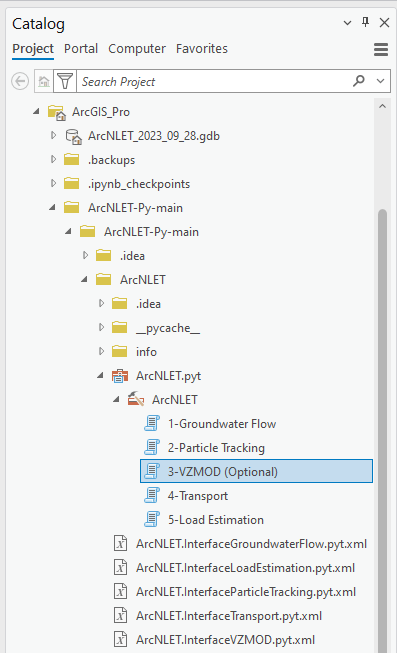
Figure 5‑44: The ArcNLET-Py Python Toolset and VZMOD Module in the Catalog Pane
Double-click the [3-VZMOD (Optional)] module, and the VZMOD Python toolset opens in the [Geoprocessing Pane].
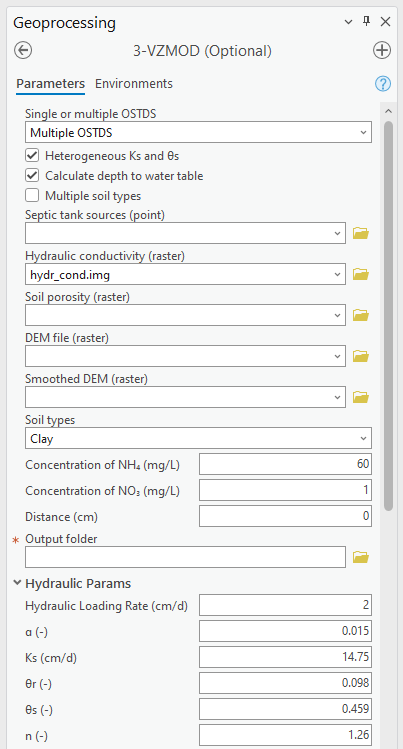
Take a moment to review the data inputs, outputs, and parameters. The VZMOD has many inputs and parameters based on using homogenous/heterogeneous hydraulic conductivity and porosity, calculating the depth to the water table, and using single/multiple soil types. Please remember that data inputs and outputs marked with a red asterisk [*] are required for the geoprocessing operation.
Click the drop-down arrow and the check boxes next to [Parameters] to expose the options.
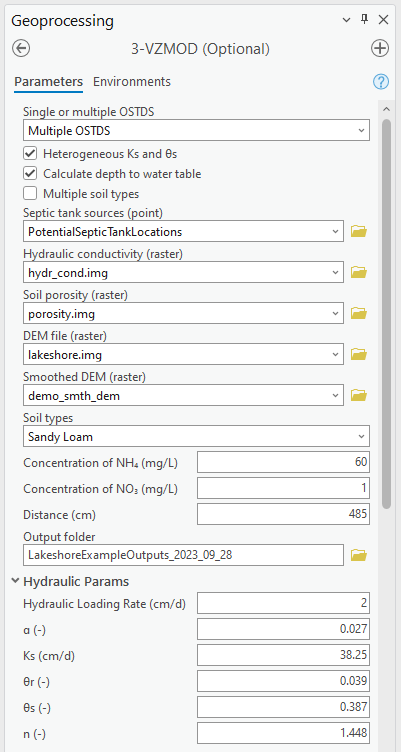
Parameters (for the Lakeshore example):
Select Single or multiple OSTDS from the dropdown menu.
Lakeshore Example OSTDS: [Multiple OSTDS]
Selecting [Multiple OSTDS] allows for the use of heterogeneous hydraulic conductivity (K) and porosity (θ), calculating the depth to the water table, and using multiple soil types.
Heterogeneous Ks and θs
Please check the box for this option: [Checked Box]
Calculate depth to water table
Please check the box for this option: [Checked Box]
Multiple soil type
Default option: [Unchecked Box].
Concentration of NH4 (mg/L)
Default option: [60]
Concentration of NO3 (mg/L)
Default option: [1]
Distance (cm)
Update value: [0]
The distance value is based on the difference between the bottom of the OSTDS and the elevation of the water table. This information should be calculated from the observation well depths to the water table. Please see Section 2.4 for more information regarding VZMOD Module calibration.
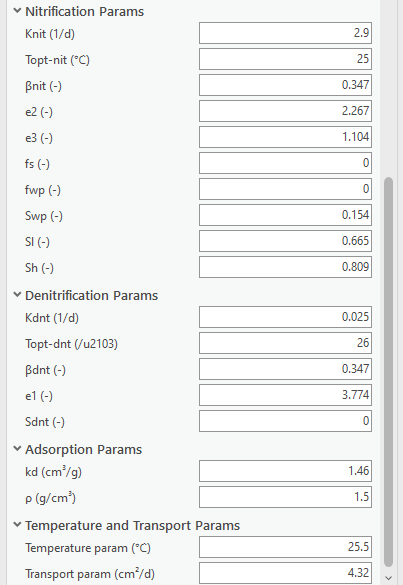
The Hydraulic Params, Nitrification Params, Denitrification Params, Adsorption Params, and Temperature and Transport Params should all be left to the default values for the Lakeshore example. These parameters are set by the ArcNLET-Py tool but can be altered by the user if data is available for calibration.
Data inputs (for the lakeshore example):
Input the Septic tank sources (point).
Lakeshore Example input vector point: [PotentialSepticTankLocations.shp]
Input the Hydraulic conductivity (raster).
Lakeshore Example input raster: [hydr_cond.img]
Input the Soil porosity (raster).
Lakeshore Example input raster: [porosity.img]
Input the digital elevation model (DEM) file (raster).
Lakeshore Example input DEM raster: [lakeshore.img]
The (optional) Smoothed DEM (raster) output from the groundwater flow.
Lakeshore Example output raster: [demo_smth_dem]
Select the Soil type from the drop-down menu.
Please select [Sandy Loam] for this example.
The soil types in this area are sandy loam and loamy sand according to the USDA Web Soil Survey Maps; FL031; Duval County, Florida; Soil Database; 2003; comp.txt text file and soilmu_a_fl031.shp shapefile.
There are several options for selecting data for a geoprocessing tool in ArcGIS Pro. If you are unfamiliar with ArcGIS Pro geoprocessing tools, please use the following URL to learn how to use geoprocessing tools. URL: https://pro.arcgis.com/en/pro-app/latest/help/analysis/geoprocessing/basics/run-geoprocessing-tools.htm
Use the [Map], [Catalog View], [Catalog Pane], or [Folder Icon] to select the necessary data inputs.
If you have the data from the Lakeshore example in a [Map] in your ArcGIS Pro Project file and the [Geoprocessing Pane] open, you can drag and drop the necessary inputs or select the files from the drop-down menu for each of the input fields.
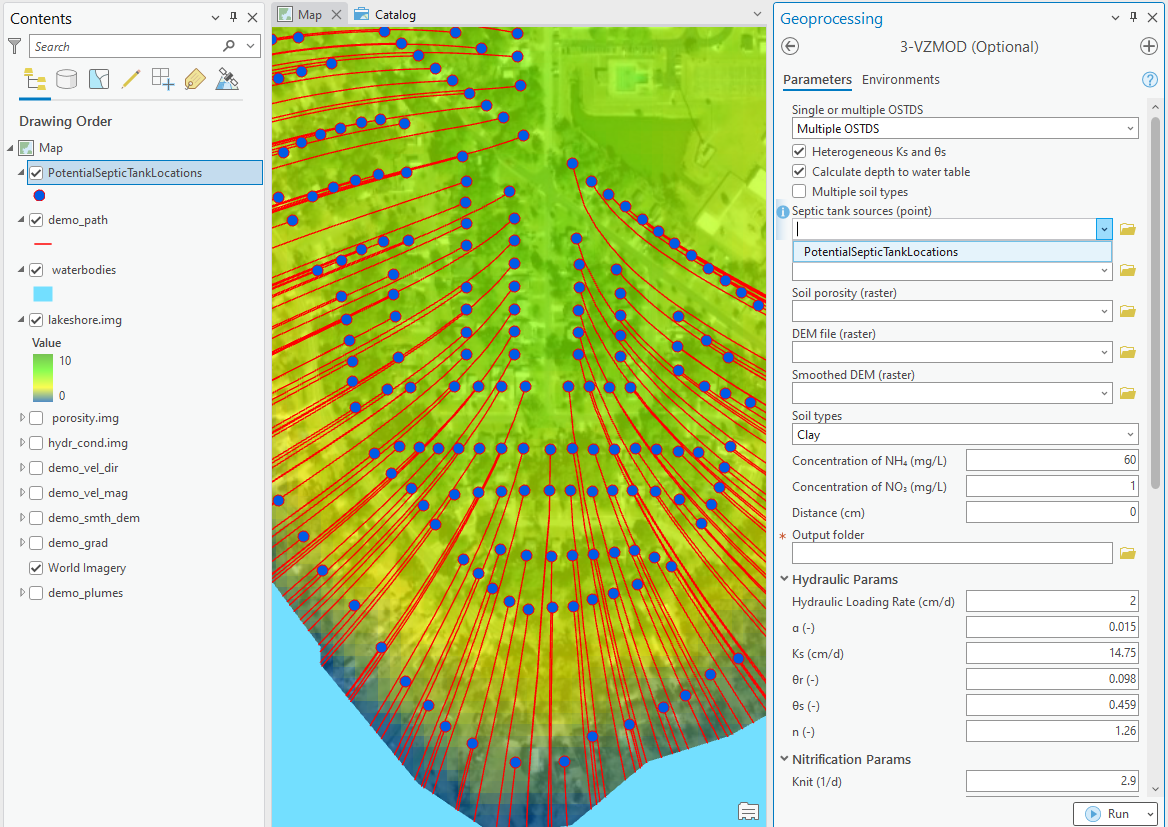
Figure 5‑46: Selecting VZMOD Module data inputs in the Map View.
If you have the data from the Lakeshore example open in a [Catalog Pane] or [Catalog View] and the [Geoprocessing Pane] open, then you can drag and drop the necessary inputs.
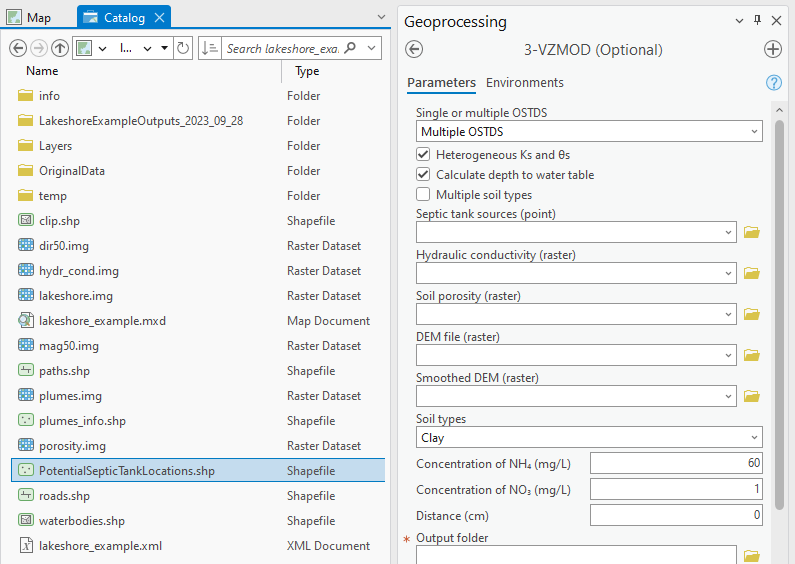
Figure 5‑47: Selecting VZMOD Module inputs by dragging and dropping from the Catalog View.
You can also click the [Folder Icon] next to each field to select the data inputs using the Windows File Explorer. To use this method, you must use the Windows File Explorer to navigate to the […\lakeshore_example\lakeshore_example] folder to select each data input and click [OK].
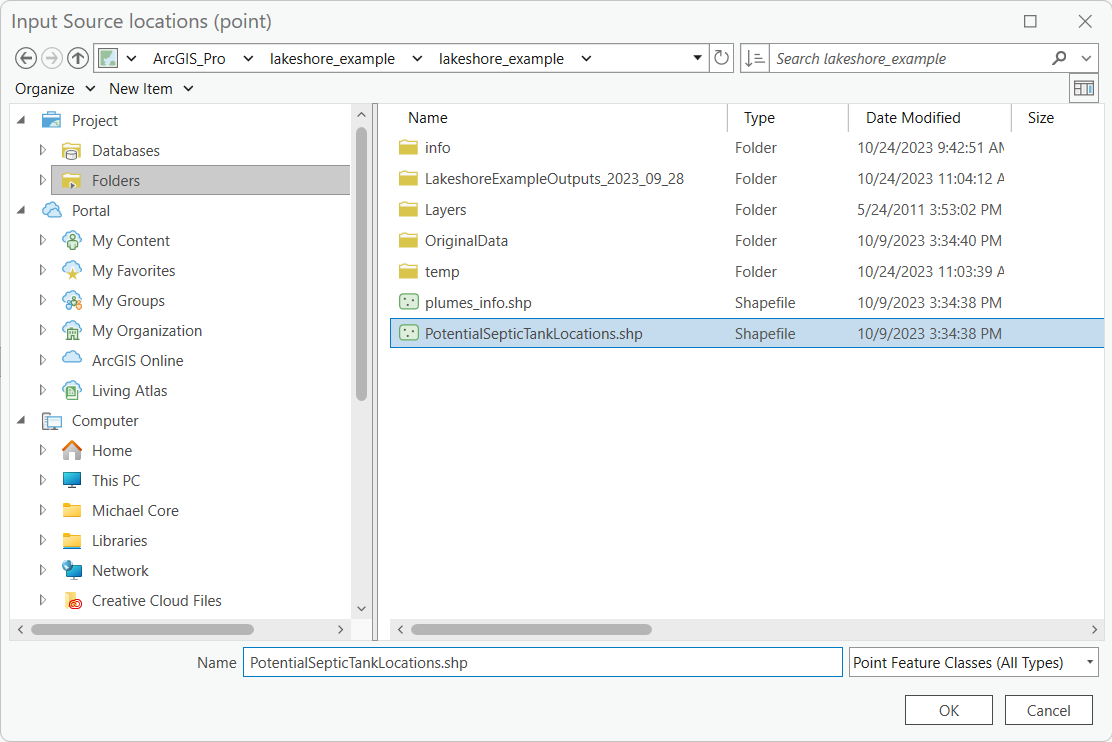
Figure 5‑48: Selecting VZMOD Module inputs from the Windows File Explorer.
Data Outputs and Parameters
Storing your files in an organized and appropriately named manner is good practice when selecting locations for data outputs. Earlier in this exercise, we used the Windows File Explorer or ArcGIS Pro [Catalog Pane] to create a new folder titled [LakeshoreExampleOutputs_YYYY_MM_DD]. The folder stores the output shapefiles.
If you need to create a new file folder in ArcGIS Pro, use the [Catalog Pane], right-click on the folder […\lakeshore_example\lakeshore_example], hover over the option [New] in the submenu, and click [Folder].
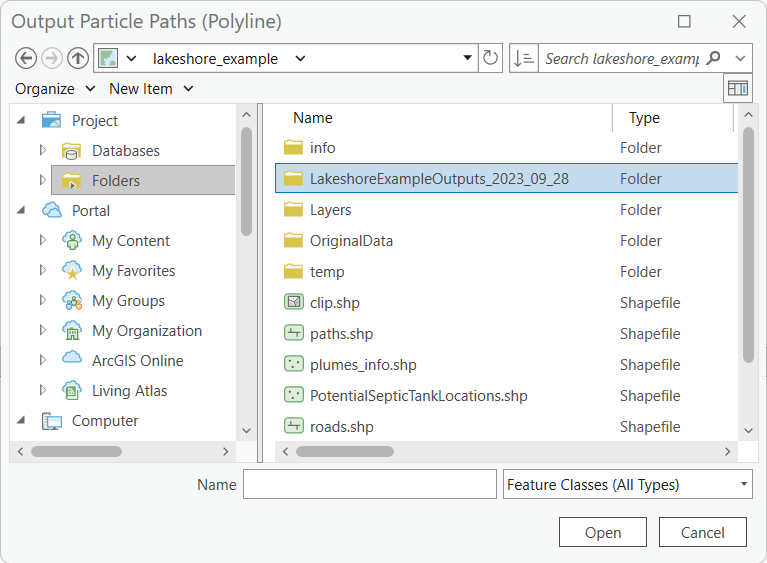
Figure 5‑49: The Lakeshore example output folders in the Windows File Explorer.
Select the necessary data output folder by clicking the [Folder Icon] next to the [Output folder] field in the [Geoprocessing Pane]. The results from the VZMOD Module are a text file labeled [results.txt] and a point shapefile with ammonium and nitrate concentration estimates at the water table.
The Windows File Explorer opens, and in the left pane under [Project], click the drop-down arrows to expand the [Folders] and ArcGIS Pro home folders.
Select the [lakeshore_example\lakeshore_example] folders.
Click the above output folder to store the output text file and shapefile from the VZMOD Module. The file path and name for the [Output folder] is […\lakeshore_example\LakeshoreExampleOutputs_2023_09_28]
The module automatically names the text file and shapefile outputs.
The ArcNLET-Py ArcGIS Pro Python toolset automatically assigns the correct file types, and if you enter a file type, a warning is triggered.
Data output:
The Output folder
Lakeshore Example output folder: [LakeShoreExampleOutput_2023_09_28]
The outputs of VZMOD are a CSV text file titled [results.txt] that contains the vertical fate and decay of nitrate and ammonia below the OSTDS and [septictanks.shp] shapefile when processing data for [Multiple OSTDS].
Double-check to ensure all red astricts [*] are removed from the [Geoprocessing Pane], indicating that all necessary data inputs and outputs have the correct file type and are accessible.
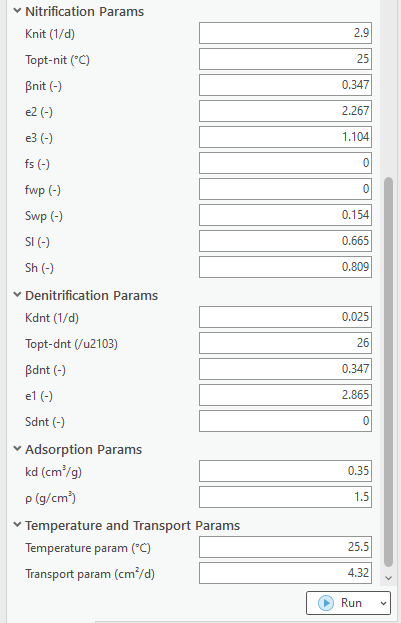
Execute the Module
Once satisfied with the data input and output selections, click [Run] in the [Geoprocessing Pane].
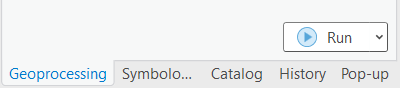
Figure 5‑51: The Run button in the Geoprocessing Pane.
ArcNLET-Py VZMOD Module begins to process data, and the progress bar appears. The runtime can vary depending on the data sets’ file sizes, spatial scale, and raster cell size.
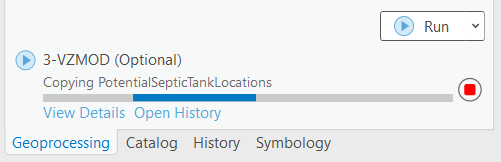
Figure 5‑52: The Progress Bar in the ArcGIS Pro Geoprocessing Pane for the VZMOD Module.
ArcGIS Pro indicates the tool is finished with a green notification box at the bottom of the [Geoprocessing Pane]. You may click [View Details] for more information about the process, including data inputs and output(s), start and end times and dates, and a success or failure message.
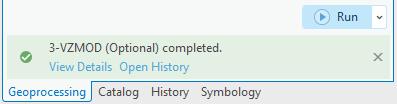
Figure 5‑53: The green notification box in the ArcGIS Pro Geoprocessing Pane for the VZMOD Module.
View and Verify Results
If you have your data inputs in an open [Map] in ArcGIS Pro, the data output(s) are automatically added to the [Contents Pane] and the [Map View]. Alternatively, if you do not have your input data in a [Map], nor do you have a [Map View] open in your ArcGIS Pro Project, and you ran the ArcNLET-Py VZMOD Module from the [Geoprocessing Pane], then your results are accessible via the [Catalog Pane] or [Catalog View] in the output folder [LakeshoreExampleOutputs_YYYY_MM_DD]. Please note that you may want to use a separate output folder each time you run VZMOD to aid in data organization.
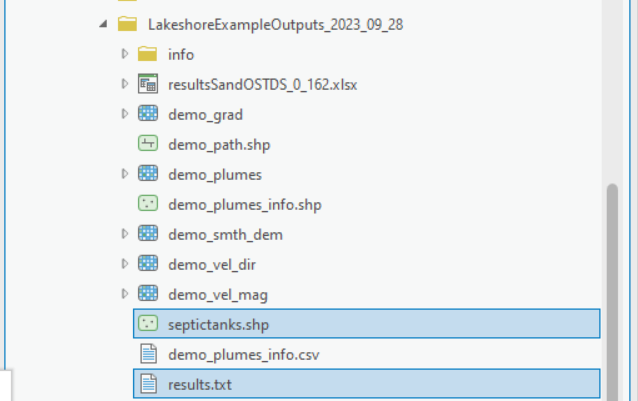
Figure 5‑54: The ArcNLET-Py VZMOD output in the Catalog Pane.
Take a moment to review the CSV text file and shapefile outputs to ensure your data has been processed correctly. Your data must be processed correctly because data outputs from the VZMOD Module are inputs in the subsequent module.
If there seems to be an issue with the output particle paths shapefile, please ensure all your data inputs are correct, in an accessible file folder, and uncorrupted.
If you continue having issues processing your data, please [View Details] as mentioned in Section 5.8.3 to see if empty datasets were created as outputs. Empty datasets indicate an issue with the input data, or ArcGIS Pro does not have read/write access to input or output file locations.
If you cannot find a solution to the issue, then please submit a [New issue] in the ArcNLET-Py GitHub repository (Issues · ArcNLET-Py/ArcNLET-Py · GitHub) as described in the GitHub instructions at Creating an issue - GitHub Docs.
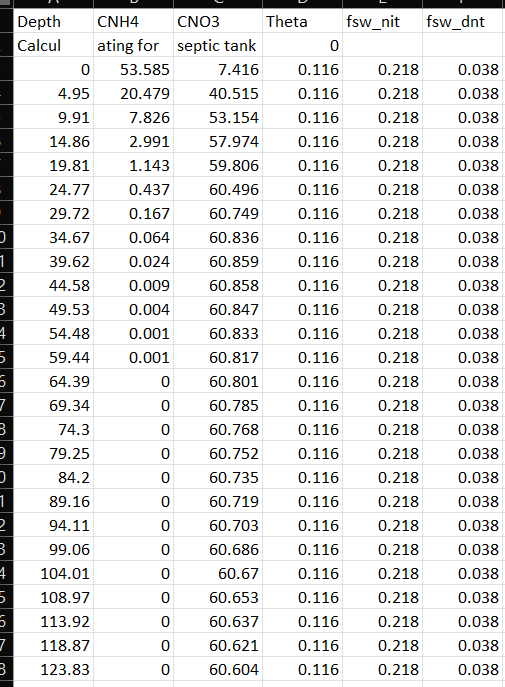
Figure 5‑55: The ArcNLET-Py VZMOD text outputs in Microsoft Excel.
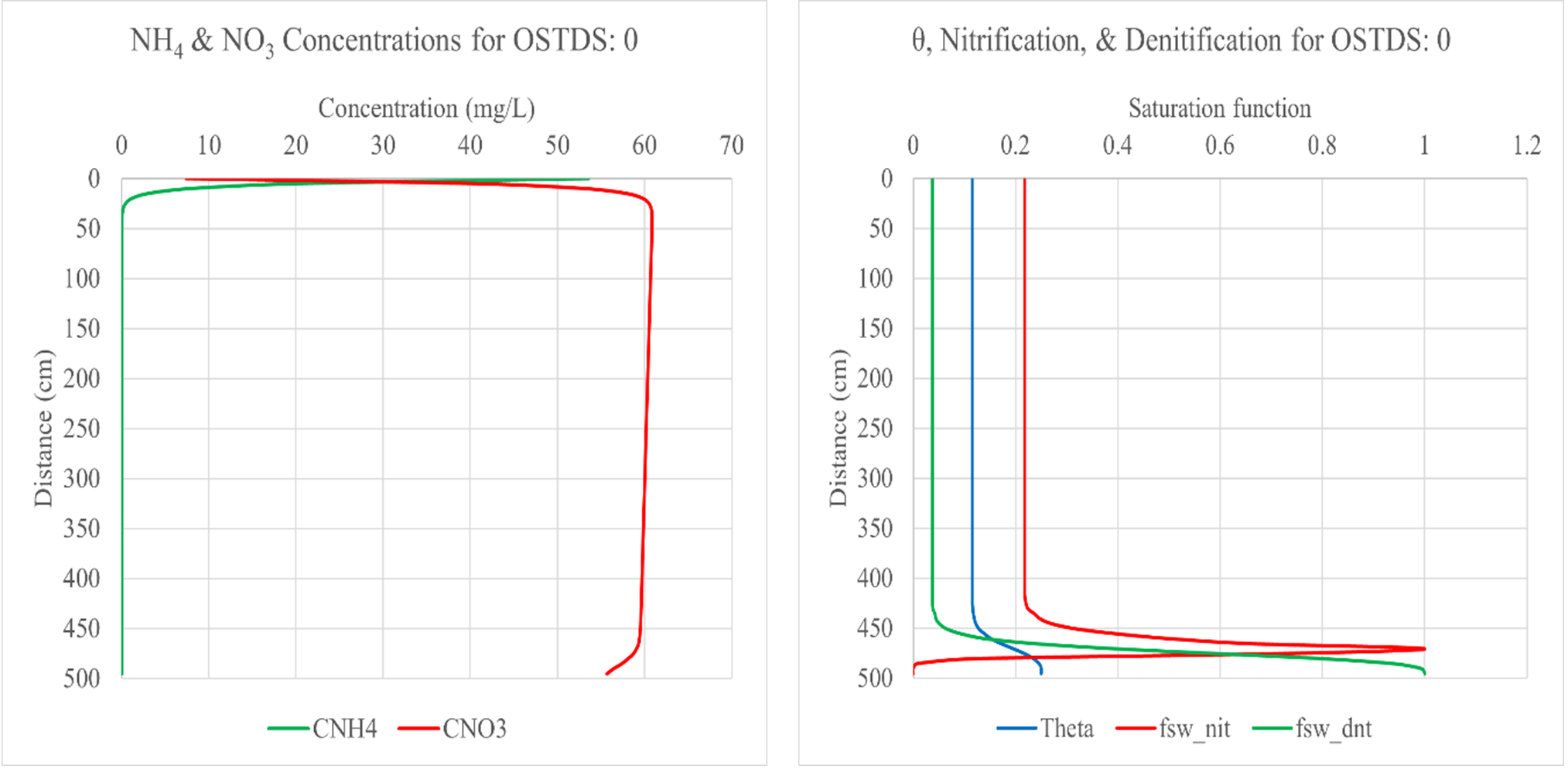
Figure 5‑56: The ArcNLET-Py VZMOD text outputs are plotted in Excel.
The plots show concentrations of NH4 and NO3 below the OSTDS (left) and the saturation function for nitrification and denitrification (right).