Using ArcNLET-Py outside the ArcGIS Pro Interface
In some cases, users may prefer to run ArcNLET-Py outside the ArcGIS Pro interface. This is because ArcGIS Pro is a large application, and its graphical user interface (GUI) can consume significant system resources. Running ArcNLET-Py from the command line or from an Integrated Development Environment (IDE) such as PyCharm—without launching the ArcGIS Pro GUI—not only improves runtime efficiency but also makes it more convenient for development and debugging. In fact, our tests show that running ArcNLET-Py outside the ArcGIS interface can significantly reduce execution time.
This document provides a step-by-step guide on how to run ArcNLET-Py within an IDE (Pycharm), while still utilizing the ArcGIS Pro Python environment.
1. ArcPy Dependency and License Requirements
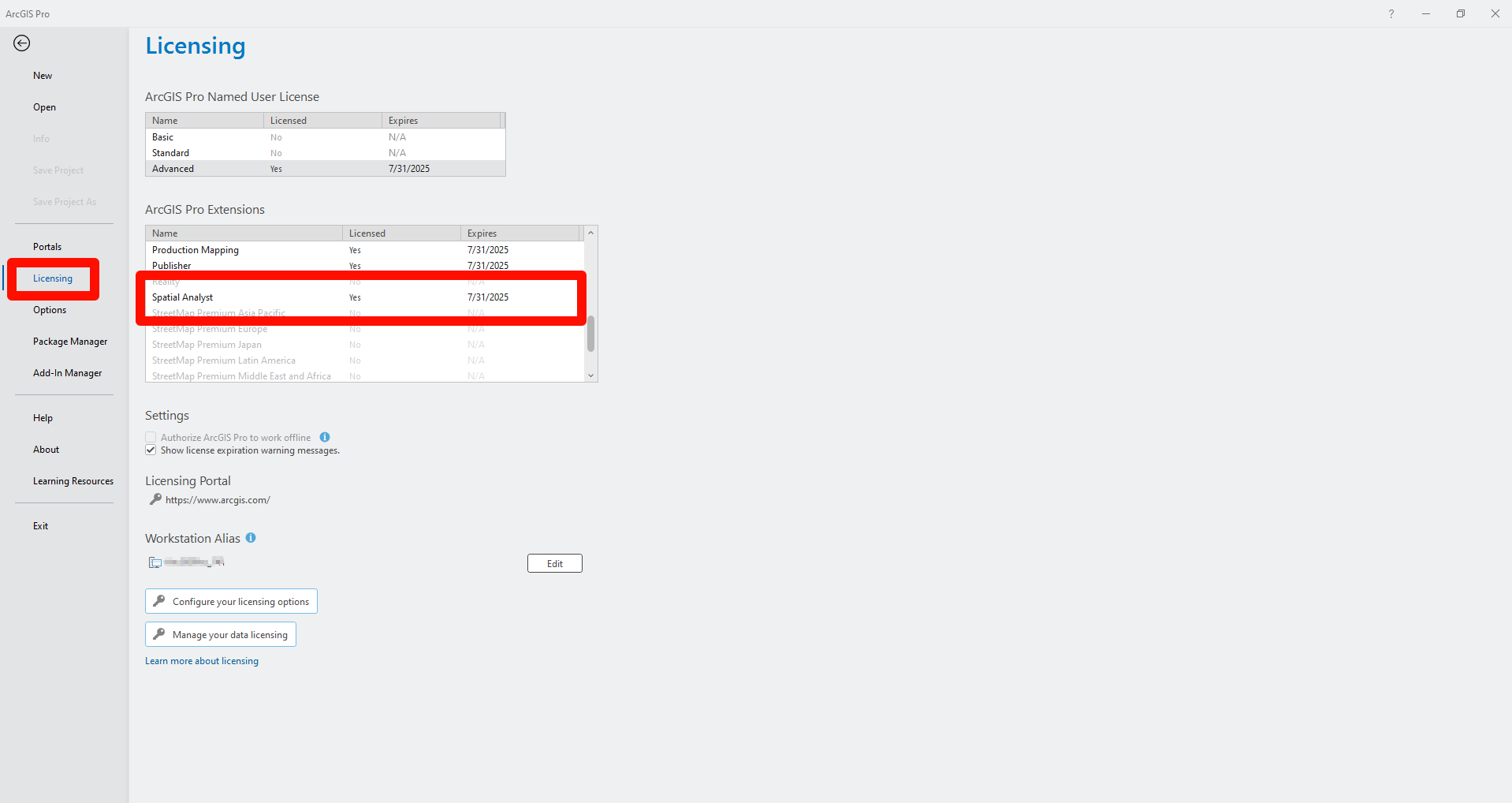
ArcNLET-Py relies on ArcPy, a core Python package included with ArcGIS Pro. Since ArcGIS Pro manages licenses at the application level, and ArcPy is governed by these licensing rules, users must ensure they have the appropriate license—particularly the Spatial Analyst extension.
To check your license status:
Open ArcGIS Pro.
Go to Settings → Licensing.
Under ArcGIS Pro Extensions, verify that Spatial Analyst is listed as “Licensed” (as shown in the figure below).
2. Locating the ArcGIS Pro Python Environment
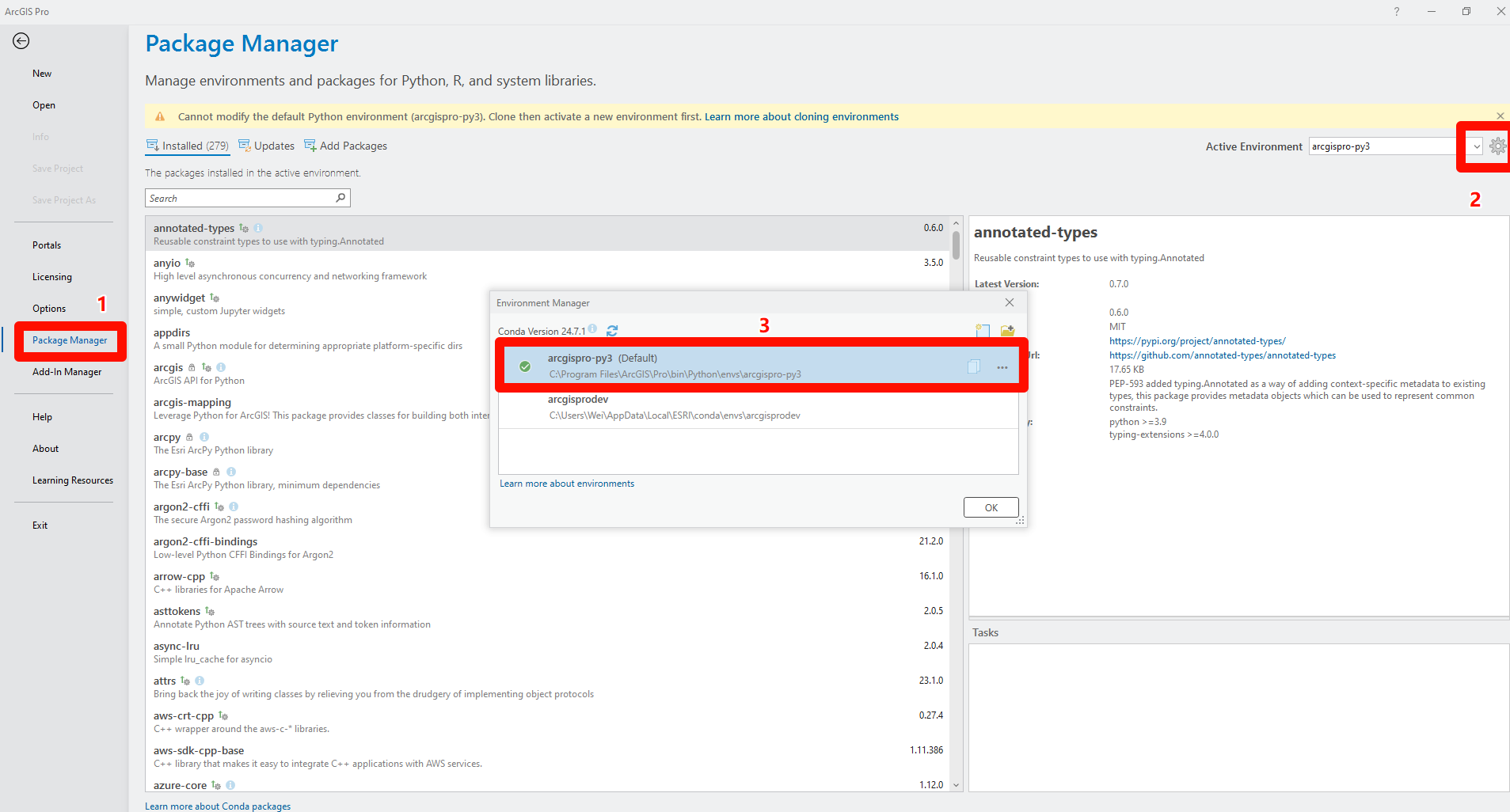
In the Environment Manager, all new Python environments are created based on the default environment named arcgispro-py3. Note that arcgispro-py3 itself is a read-only base environment—you cannot install or remove packages from it. This restriction is intentional to ensure the stability of ArcGIS Pro. Esri recommends cloning this base environment if you need to install additional packages.
Fortunately, ArcNLET-Py does not require any extra packages beyond the default arcgispro-py3 environment. Therefore, you can either use arcgispro-py3 directly or create a clone if preferred. In this guide, we will demonstrate how to use the Python interpreter path of the arcgispro-py3 environment directly.
3. ArcNLET-Py Source Code Structure
The contents of this folder can be divided into several categories:
- ArcNLET.pytThis is the main toolbox file that serves as the entry point when using ArcNLET-Py within ArcGIS Pro.
- XML filesThese define the pop-up tooltips for parameters when using ArcNLET-Py inside ArcGIS Pro. When hovering over input fields, the tooltips are generated based on these XML configuration files.
- GUI*.py files (6 in total)These files define the GUI layout for the six modules of ArcNLET-Py within the ArcGIS Pro interface. They handle the interface presentation and capture user inputs.
- tool*.py files (6 in total)Each of these files contains the computational logic for one of the six ArcNLET-Py modules. The GUI files collect user inputs and pass them to the corresponding tool files to perform the actual calculations.
Other supporting files
DomenicoRobbins.py: Provides analytical solutions for modeling groundwater plumes, used specifically bytool4_transport.py.soiltexture/folder: Contains soil classification functions used bytool0_preprocessing.pyto interpret SSURGO-based soil data.
4. Debugging ArcNLET-Py in PyCharm
To run or debug ArcNLET-Py outside ArcGIS Pro using an IDE like PyCharm, follow the steps below:
- Create a new PyCharm projectYou can create a new project, then copy the
ArcNLET-Py-Source-Codefolder into your project directory. For details, refer to the official guide: Configure the Python interpreter
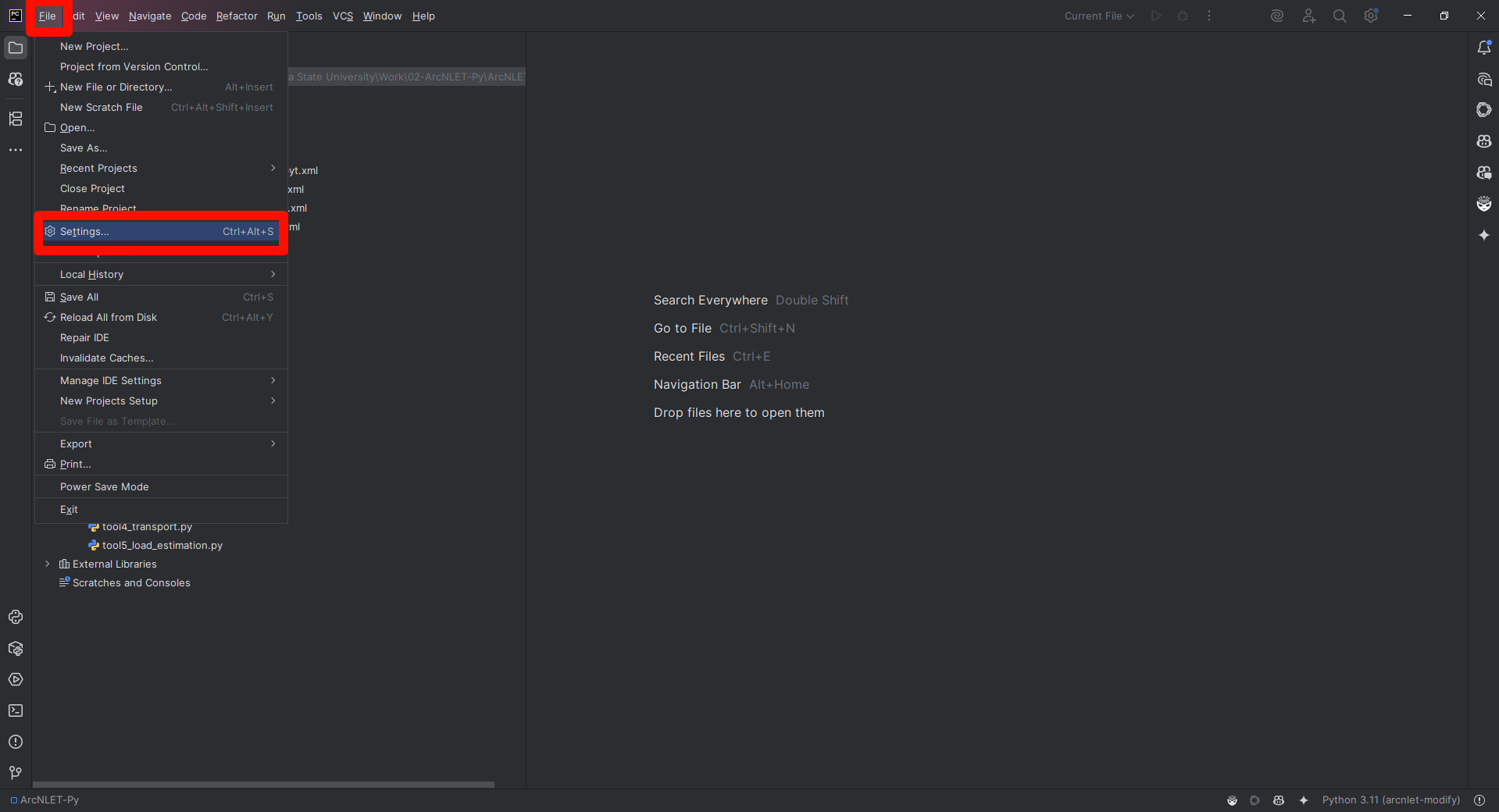
- Go to File → Settings
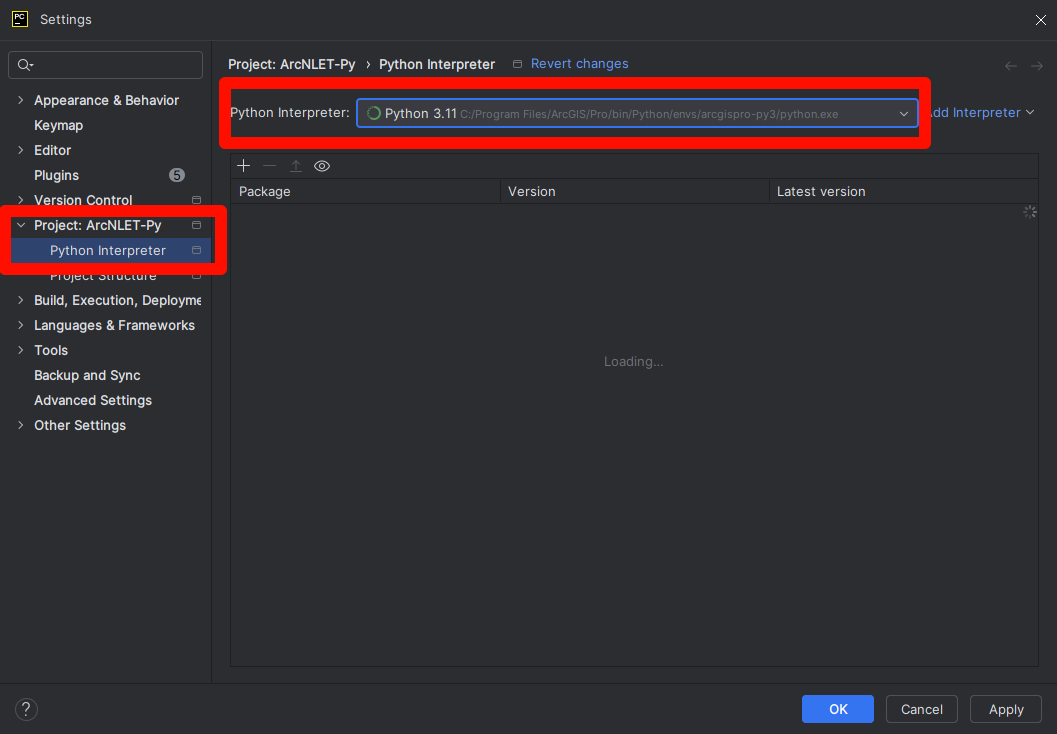
- Under Project: <Your Project Name> → Python Interpreter, click the interpreter dropdown on the right and select “Add…”.
- Browse to the Python interpreter path from Step 2 (i.e., the one from the arcgispro-py3 environment).
- Click Apply, then OK to confirm the environment setup.
Verify ArcPy availability
Open the Python Console in PyCharm and enter:
import arcpy
arcpy.__version__
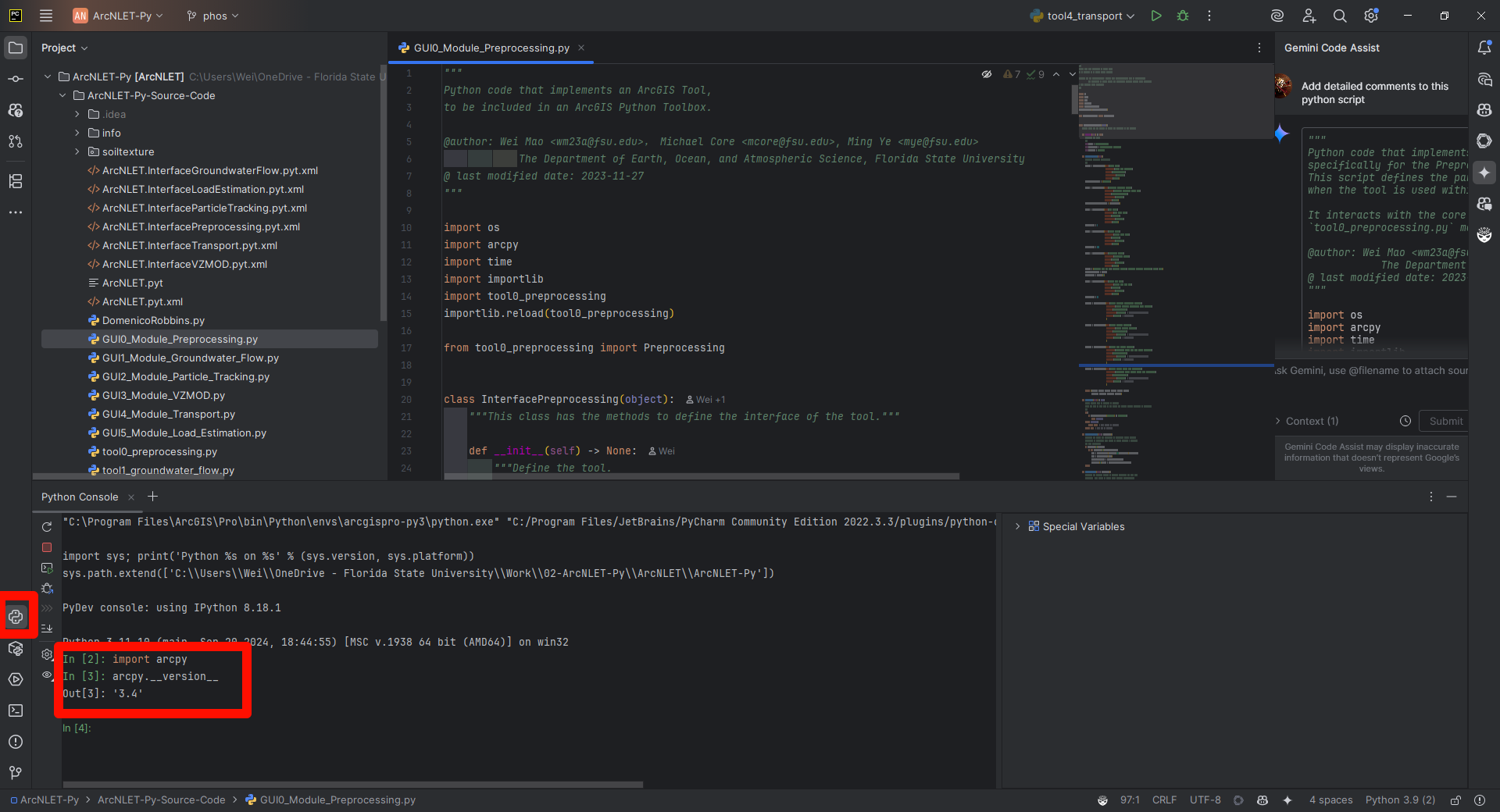
If the Python Console returns the ArcPy version, the setup was successful.
Running ArcNLET-Py from other IDEs is similar.
5. Running Lakeshore demo
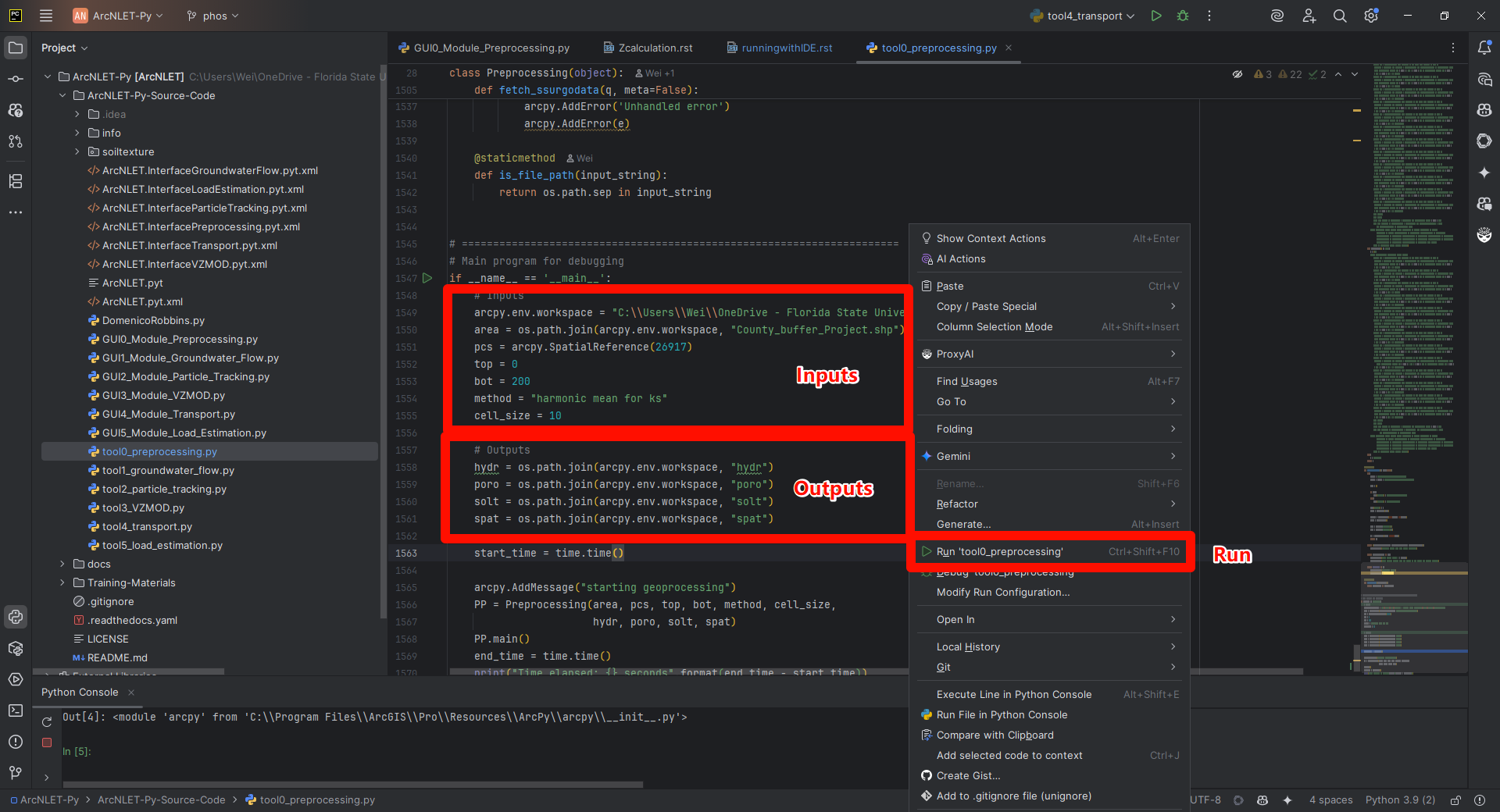
When running ArcNLET-Py outside the ArcGIS Pro interface (e.g., with a demo), it is not necessary to open the GUI*.py files. Instead, you can directly work with the tool*.py files. Each of the six modules in ArcNLET-Py is independent, so they can be executed separately.
For example, to run the pre-processing module, follow these steps (the process for other modules is similar):
- Open
tool0_preprocessing.pyin PyCharm. - Scroll to the bottom of the file, where you will find the main entry point:
if __name__ == "__main__":
   pass
- Modify the input and output parameter values as needed.
- Right-click anywhere inside the file and select Run from the context menu.
This will execute the selected module using your customized inputs.